Rescue · Convert · Preserve
Graphic stops working.
Your drawings shouldn't.
Graphic — the vector design app app formerly known as iDraw — last saw an update in 2018, and a coming macOS release is expected to stop opening it altogether. Every precious design you made goes with it.
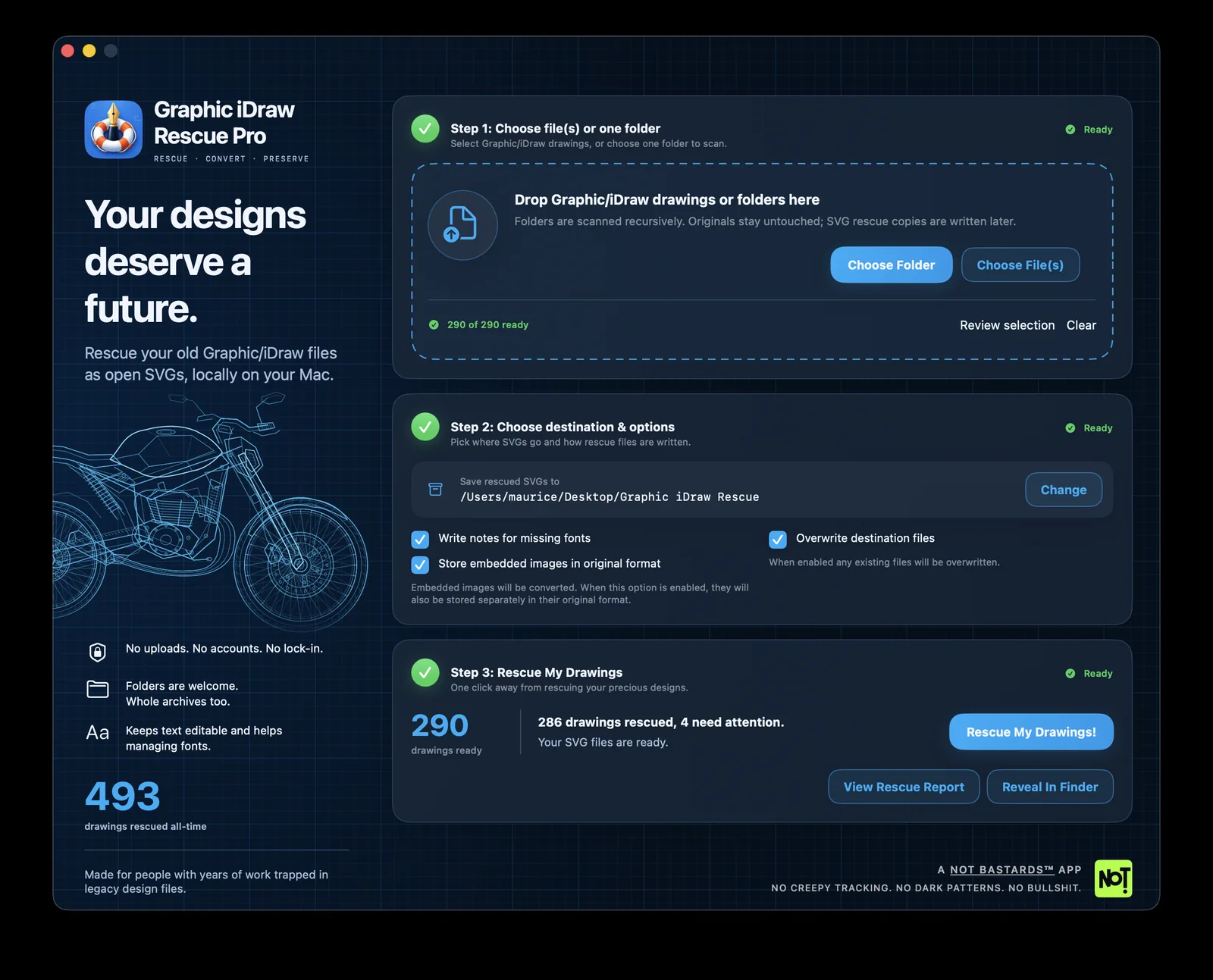
Graphic iDraw Rescue Pro converts those documents into open SVG files that Illustrator, Affinity, Figma, Inkscape and every browser can read — on your Mac, locally with nothing uploaded and no account.

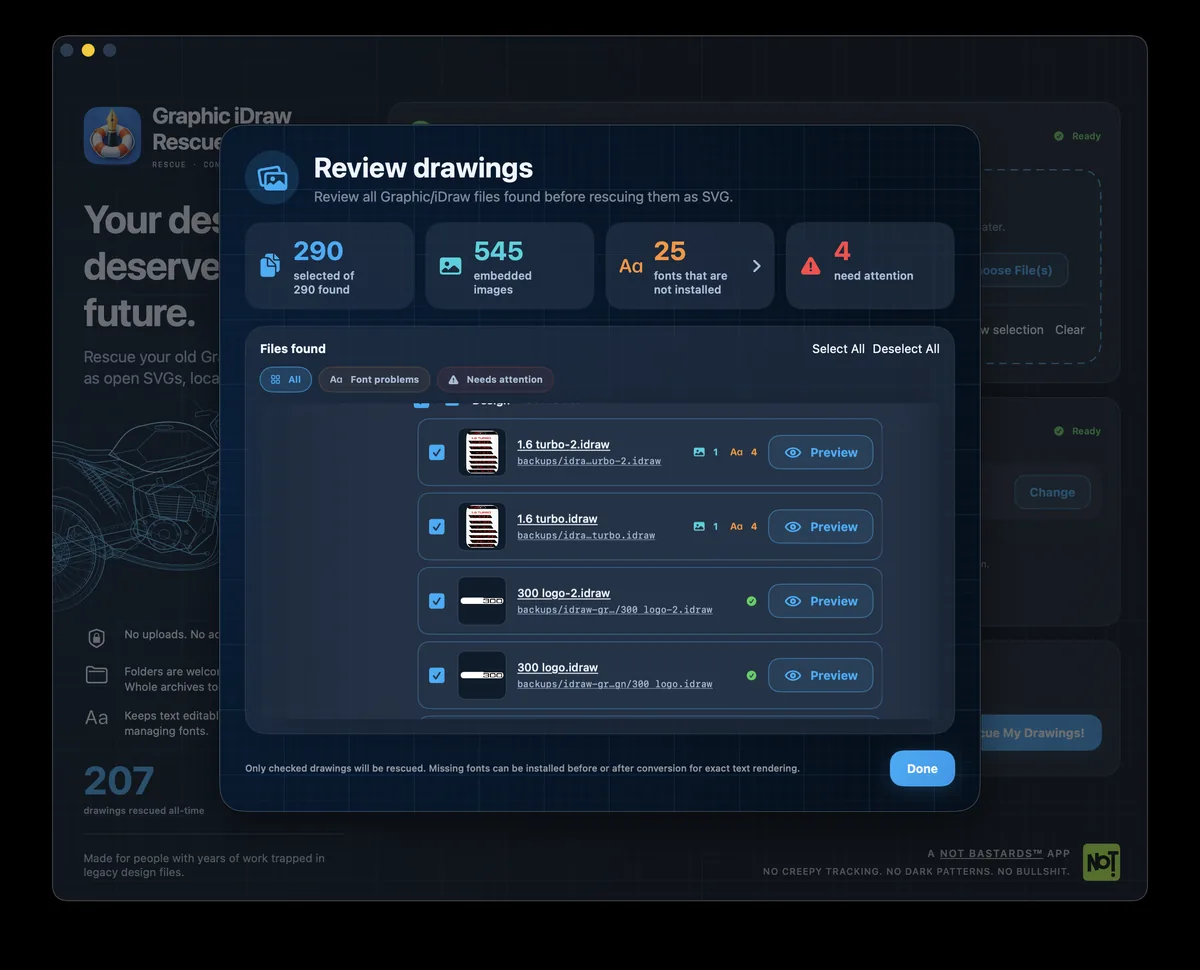
The demo analyzes your drawings, lets you resolve font problems and shows exactly what could be rescued.
Try the free demo first. Graphic/iDraw files can vary, so the rescue is best-effort by design. A dry run shows how your own drawings will convert before you buy.
Your drawings are on borrowed time
2001 → 2027Timeline
↔ Scroll- 2001iDraw for Mac OS X
- April 2010iDraw for iPad 1.0
- 2015Autodesk buys iDraw
-
October 2015Rebranded as
Autodesk Graphic -
2017Picta Inc.
buys Graphic -
2018Last Mac and
iPad updates -
September 2026Graphic iDraw
Rescue Pro released -
Autumn 2027macOS 28: Graphic
stops opening
Open the escape hatch before Graphic becomes another unreadable file format. More details at intelcountdown.com
Old drawings, still readable
A .idraw document is a closed format. If the app that made it no
longer runs on your Mac, the artwork inside becomes hard to reach — and with it
the logos, plans, diagrams and illustrations you spent years making.
Graphic iDraw Rescue Pro reads those documents converts them to a standard SVG for each one, while keeping the structure of the drawing: layers, groups, paths, gradients, strokes and effects.
-
Layers are preserved. Every layer in the original drawing becomes its own named group in the SVG, opacity included, so you can still select, hide and edit them separately.
-
Text stays text. Words remain editable and searchable in the SVG instead of being flattened into outlines. Multiple lines, word wrapping inside the text box, character spacing and line spacing are reproduced as faithfully as SVG allows.
-
Fonts are checked. Every typeface a drawing needs is compared against what is installed, and missing ones are listed per file — with a lookup button to find them.
-
Linear gradients survive. Common gradient fills are converted into SVG gradients, alongside strokes, opacity and effects.
-
Images come along. Pictures inside a drawing are embedded in the SVG, and the untouched originals are saved next to it.
-
Whole archives at once. Point it at a folder and it scans everything inside, however deep.
Demo and Pro
The demo is a genuine dry run: it tells you precisely what a rescue would produce before you pay for anything. Because every archive is a little different, start there and check the result with your own designs.
| What you can do | Demo | Pro |
|---|---|---|
| Scan files and whole folders | Yes | Yes |
| See previews of original drawings | Yes | Yes |
| Find missing fonts, look them up | Yes | Yes |
| Write a rescue report | Yes | Yes |
| Convert to flat PNG files | Yes | Yes |
| Convert to layered SVG files | No | Yes |
| Save the original embedded images | No | Yes |
Pay once
One price.
No subscription.
Buy Pro once and it stays yours, including the improvements that come after. No account, no monthly fee, nothing to cancel later.
Because we are not bastards.
€14.99
£12.99 in the UK · $14.99 in the US The Mac App Store shows the exact price for your country — local currency and tax nudge it either way.
 Download the demo
Why it is not free. Graphic never published its file format, so every path, gradient, font and text box had to be worked out by hand from real drawings, one oddity at a time — and new oddities still turn up. Roughly the price of a decent lunch, for a folder full of work you thought you had lost. The demo stays free for as long as you need it, and can be used to convert your drawings to flat PNGs.
Frequently asked questions
What is a .idraw file?
It is the document format of the Graphic drawing app for Mac and iPad, which was called iDraw before it was renamed. Inside, the drawing is stored as a property list together with any images that were placed in it.
What is the difference between SVG and PNG?
An SVG keeps a drawing as a drawing. Paths, layers, text and gradients all stay separate objects, so you can scale it from a business card to a billboard without a single soft edge, recolour one shape, or fix a typo years from now. A PNG is a grid of pixels — a photograph of the drawing. It looks right at one size, and everything in it is baked together for good.
That is why a rescue produces SVG: of the two, it is the one that keeps your work alive and editable. The PNG preview images the app writes are there to check a conversion at a glance — in the demo they are the output, so you can see how your own drawings come out before buying Pro.
Will it change my original files?
No. Original drawings are opened read-only and never written to. Everything the app produces is new: SVG files, image copies and a report, all in the destination folder you pick. The demo does not even do that — it writes nothing anywhere.
Which app should I open the rescued SVGs in?
Affinity by Canva is the one we recommend. It opens the rescued files closest to the original drawing, and keeps the layers and the text editable so you can carry on working where Graphic left off. Illustrator, Figma and any modern browser read them well too.
Inkscape is the exception. It opens the files, but it often renders them incorrectly — text position, spacing and some fills come out wrong even though the SVG itself is valid. If a rescued drawing looks off in Inkscape, open it in Affinity or a browser before concluding the conversion went wrong.
What happens to fonts I do not have installed?
The text still converts, and stays editable, but a viewer will substitute another typeface for it. Before converting, the app lists every missing font and which drawings use it, so you can install them first for an exact match. Each missing font has a lookup button that searches Google Fonts, MyFonts or Adobe Fonts for the family name — installing the font later and reopening the SVG works too.
What about images inside a drawing?
Pictures placed in a drawing are often stored as TIFF, which browsers and most SVG viewers cannot display. The app re-encodes them as PNG inside the SVG so the picture actually shows up, and — in Pro — also saves every image untouched, in its original format, in a folder next to the SVG. Nothing is lost.
Does anything leave my Mac?
No. There is no account, no sign-in and no upload. The app reads your files, writes the results where you tell it to, and never sends anything anywhere. It runs in Apple's App Sandbox and only touches the folders you choose yourself.
Can it handle hundreds of drawings at once?
Yes. Point it at a folder and it works through everything inside, showing progress and an estimate of the time left. You can stop a run at any moment; whatever was already converted stays. Files that cannot be read are skipped and listed in the report rather than halting the run.
What if a drawing will not convert?
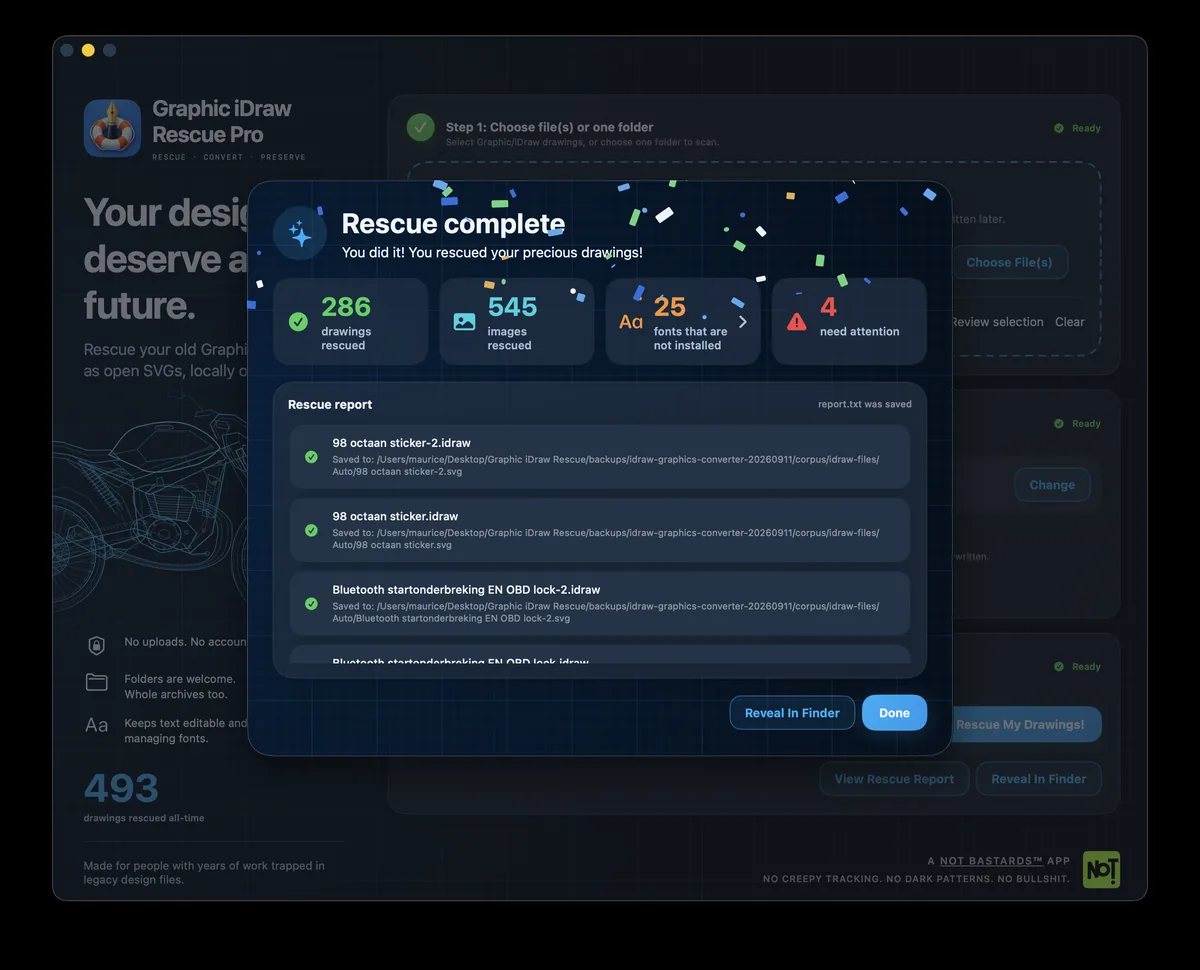
It is reported instead of being silently dropped. The report records which step
failed and why — a damaged archive, a password-protected file, a missing
data.xml — with enough technical detail to diagnose it. Send that report
along if you would like it looked at.
What do I need to run it?
macOS 14.6 or later, on an Apple silicon Mac. The download is about 4.5 MB.
What should I check in the demo?
Conversion is best-effort because old Graphic/iDraw files can vary. The app aims to recover useful, editable SVGs rather than flatten everything into a pixel-perfect image.
Current limitations include linear gradients only, and text bounding boxes that may differ slightly between apps and fonts. For example, text placed tightly over a rectangle may need a small adjustment after conversion.
Please try the free demo first with your own drawings. It shows what can be rescued before you buy Pro, and the converter will keep improving over time.
Which parts of a drawing are converted?
Layers and groups, paths with their fills and strokes, linear gradients, image fills, drop shadows and glows, text — including text set along a path — and per-object opacity. Anything the converter does not recognise is written into the SVG as a comment, so you can see what was left out rather than wondering.
Contact
Questions, a drawing that will not convert, or a feature you need? Get in touch — a report file from the app helps enormously.